FAQ
Questions
Is it free?
Yes, completely free.
Does it send my data anywhere?
No. Everything runs on your computer and works offline. Your stats and pet names are saved only on your laptop. The mic only listens after you press the Mic button, using Windows' built-in speech recognition.
How do I use it?
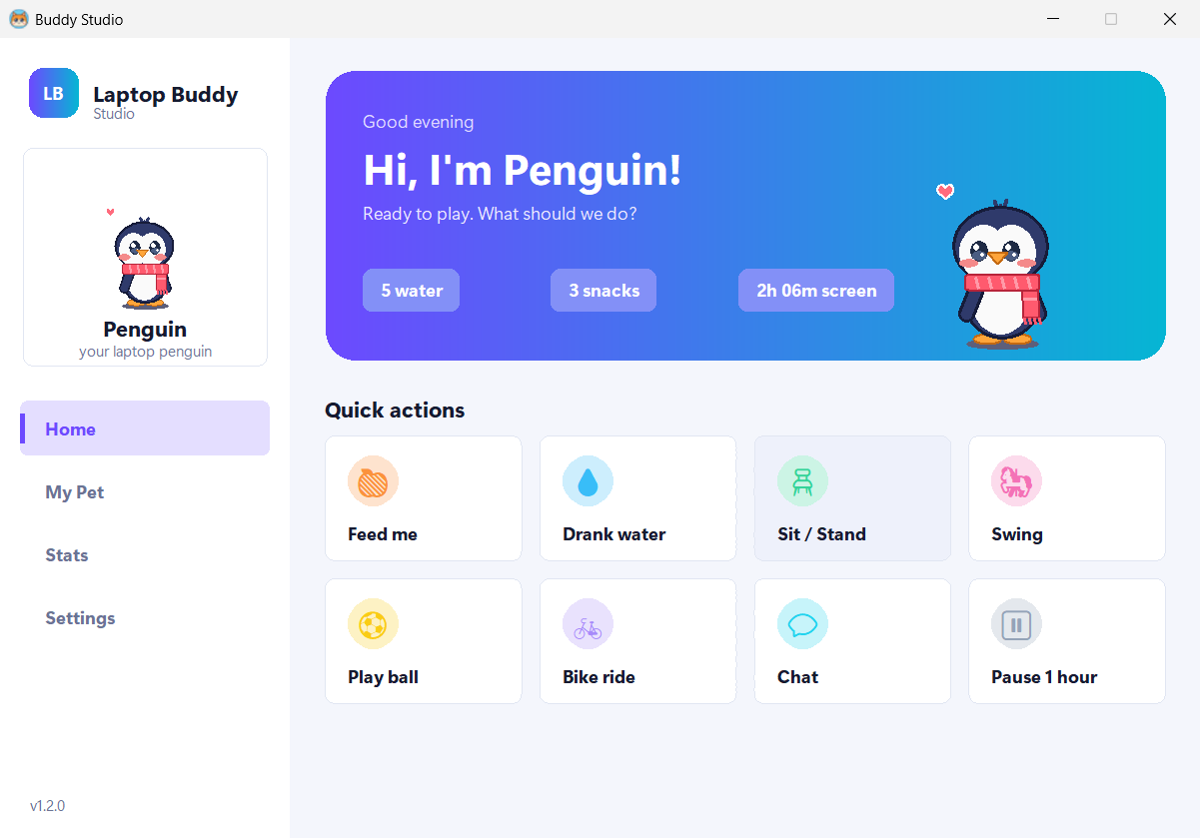
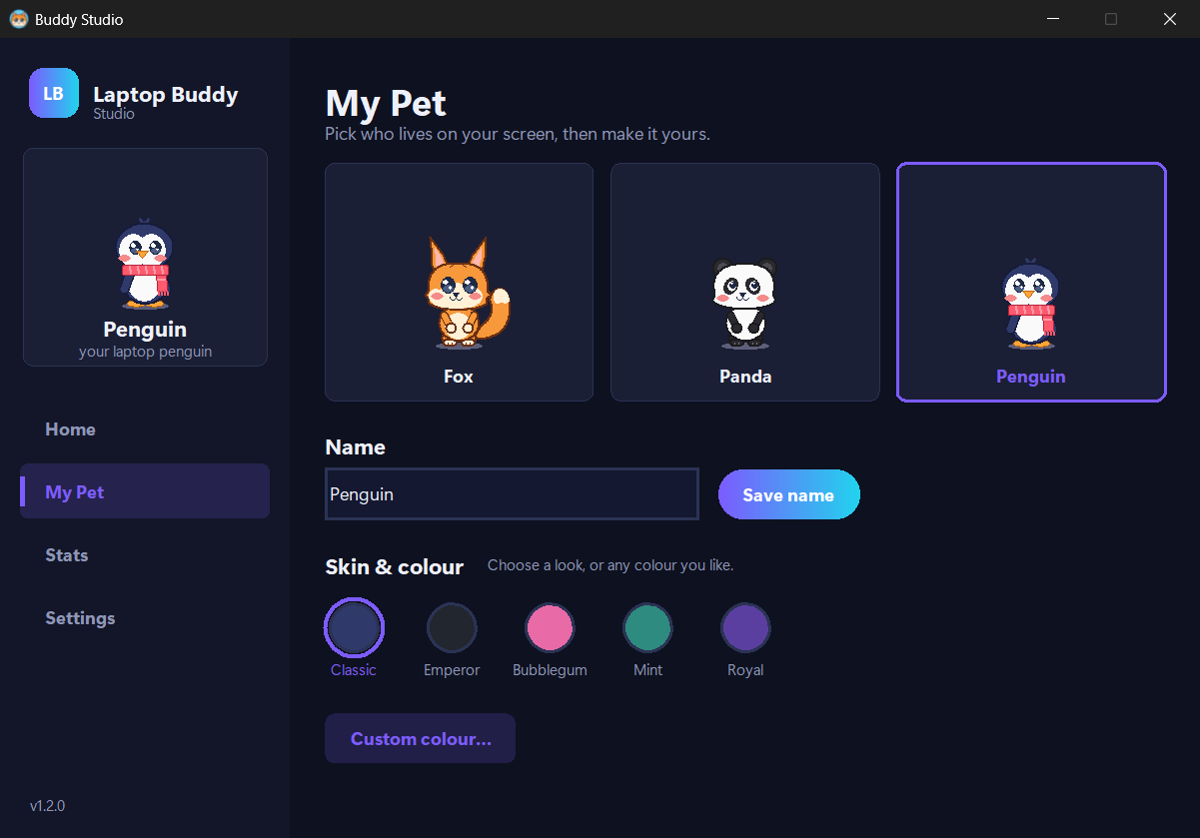
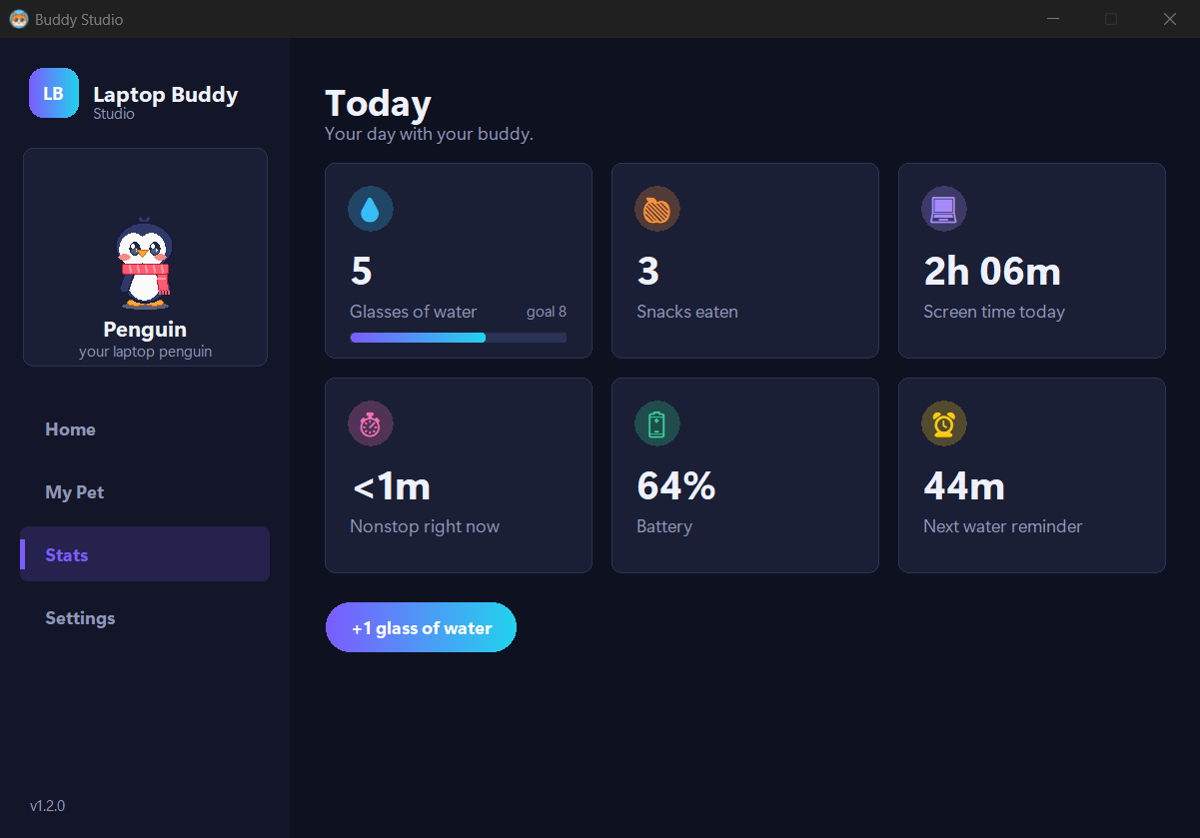
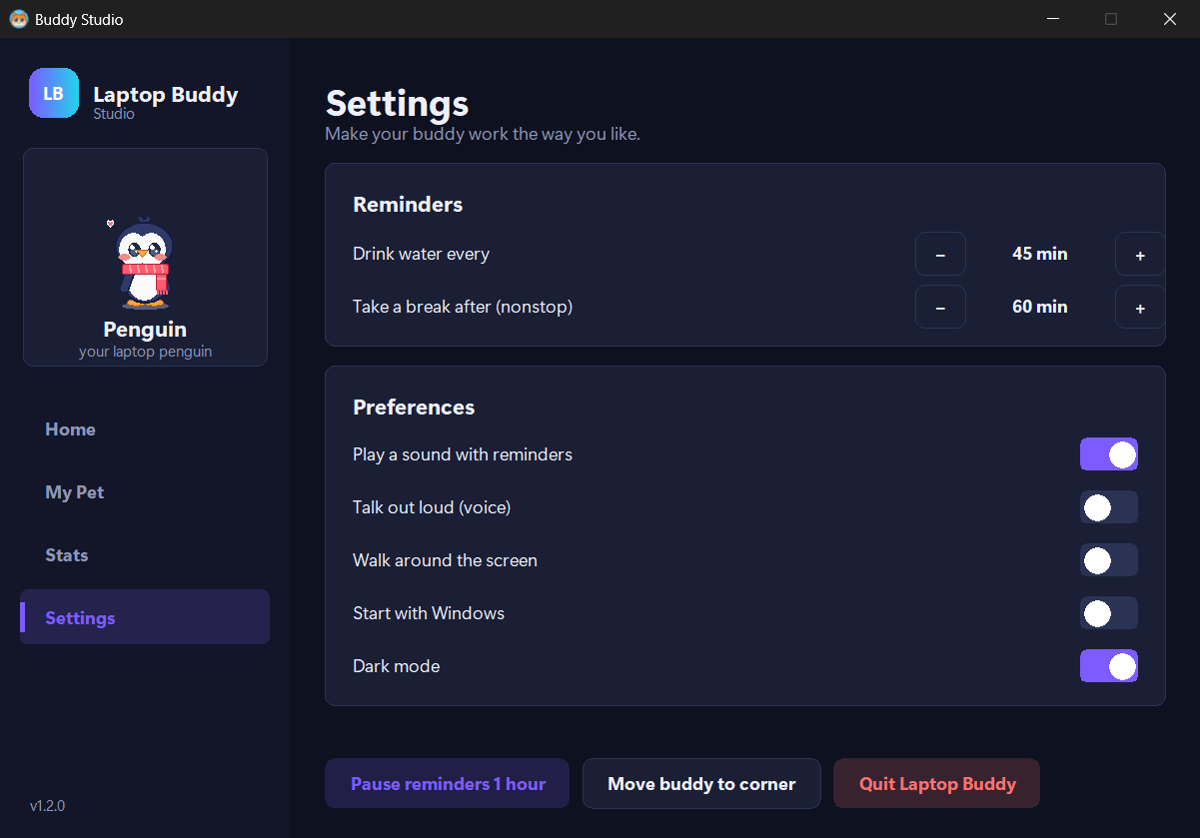
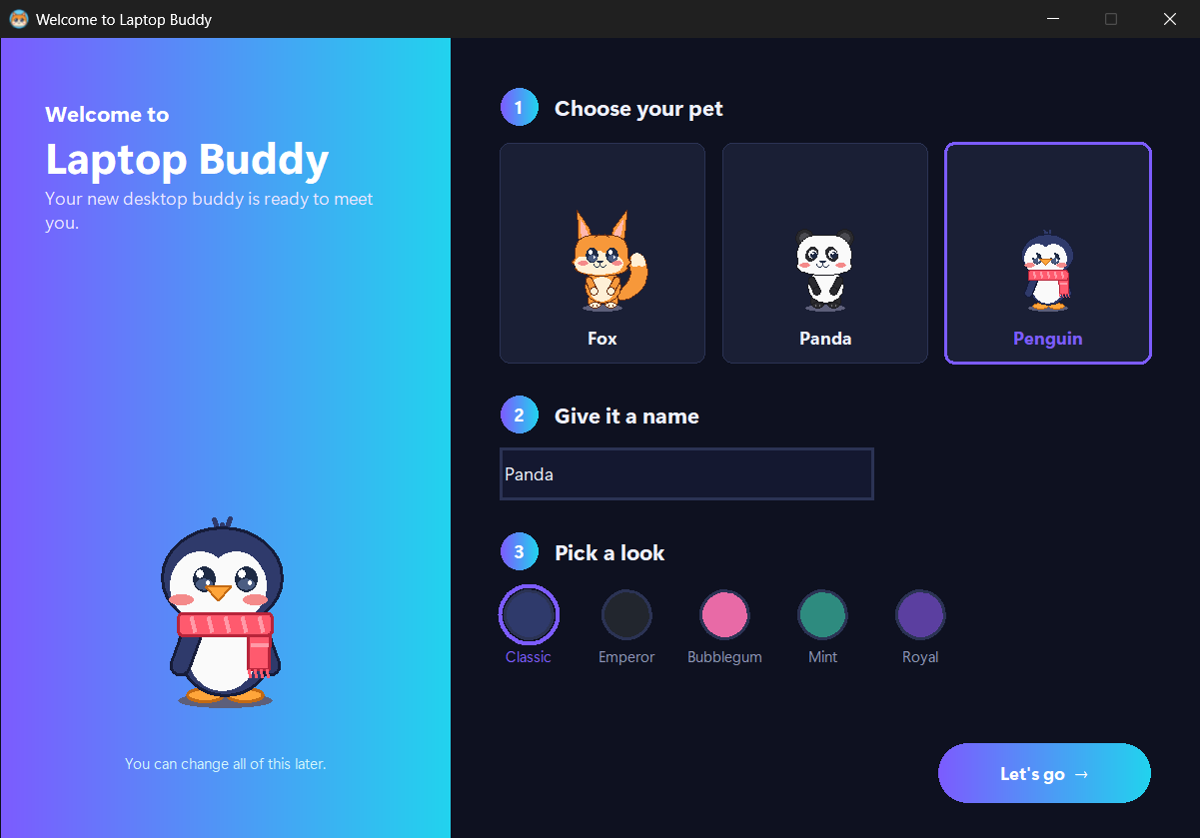
Click your pet to open Buddy Studio – feed it, play, chat, change its pet, name, skin and colour, check your stats and set your reminders. Drag it anywhere. Right-click for the quick menu.
I already have an older version. How do I update?
Download the new file, open it and click Update. Your pet, names and stats are kept.
How do I uninstall it?
Pick whichever is easiest – all three do the same thing:
1. In the app: click your pet → Buddy Studio → Settings → Uninstall app (or right-click the pet → Uninstall Laptop Buddy…).
2. Windows Settings: Settings → Apps → Installed apps, search Laptop Buddy, click ⋯ → Uninstall.
3. Start menu: open the Laptop Buddy folder → Uninstall Laptop Buddy.
You'll be asked whether to keep your saved data (pet names and stats) in case you install again.
How do I close it without uninstalling?
Right-click the pet → Quit buddy, or Buddy Studio → Settings → Quit app. Open it again from the Start menu.
Does it work on Mac?
Not yet – Windows 10 and 11 only.